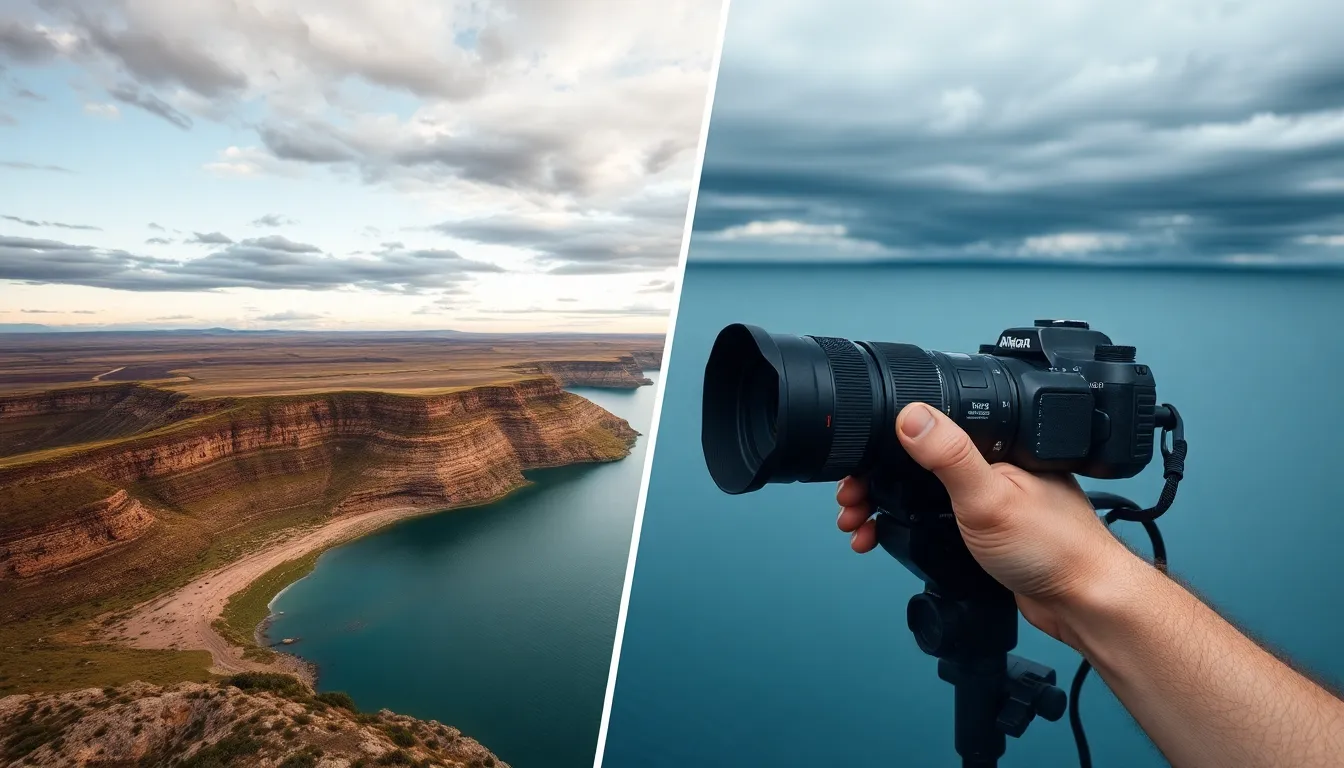
How to Blend Two Photos Together in Photoshop: A Complete Guide to Seamless Image Compositing
I remember the first time a client asked me to blend two photographs together into a single, cohesive image. It wasn’t just about stacking layers—it was about telling a story that neither photo could tell alone. That’s when I realized that blending two photos in Photoshop isn’t a technical skill; it’s an art form that bridges the gap between reality and imagination.
Whether you’re creating a fantasy landscape, combining portraits, or compositing product shots, knowing how to blend two photos together in Photoshop is fundamental to professional photo manipulation. After years of working with clients and teaching workshops, I’ve distilled the process into actionable steps that anyone can follow.
Understanding the Fundamentals of Photo Blending
Before we dive into the mechanics, let me explain what makes a successful blend. When you’re blending two photos together in Photoshop, you’re essentially asking the software to merge two separate realities into one convincing image. This requires more than just layering—it demands attention to lighting, color, and composition.
The most common blending scenarios I encounter are:
- Landscape compositing: Combining a dramatic sky with a landscape that lacks one
- Portrait blending: Merging the best elements from multiple shots
- Product compositing: Combining lifestyle and product imagery
- Creative effects: Building surreal or artistic compositions
Each scenario requires slightly different techniques, but they all share core principles that I’m about to walk you through.
Setting Up Your Photoshop Workspace for Optimal Results
Before importing your images, I recommend configuring your workspace for precision work. A quality monitor makes an enormous difference when blending photos—you need accurate color representation to ensure your blend doesn’t look artificial in the final output.
I’ve found that the BenQ SW270C 27" Photo Editing Monitor is invaluable for this work. The 99% Adobe RGB coverage and hardware calibration ensure that the blends I create look consistent across all viewing platforms. When you’re making critical opacity and color decisions, monitor accuracy isn’t a luxury—it’s a necessity.
Also, keep your high-resolution files organized on fast storage. Large composite files can bog down your system, so I store my working files on a SanDisk Extreme Pro 2TB Portable SSD for quick access without taxing my main drive.
Step 1: Prepare and Import Your Images
Open Photoshop and create a new document with dimensions matching your primary image (the one you want as your base). I typically set the resolution to 300 DPI for print work or 72 DPI for web projects.
Import your first image as a layer by going to File > Place Embedded. This gives you more flexibility than simply opening it. Do the same with your second image.
Pro tip: Arrange your layers thoughtfully. Put your base image at the bottom and the image you’ll be blending on top. Name your layers descriptively—“Sky Overlay” or “Portrait Secondary”—so you don’t lose track when you have multiple blending layers.
Step 2: Master Layer Opacity for Basic Blending
The simplest way to blend two photos together in Photoshop is adjusting the opacity of your top layer. This is where many beginners start, and it’s an excellent foundation.
Select your top layer and look at the Layers panel on the right. You’ll see an “Opacity” slider at the top (typically set to 100%). Lower this value gradually while observing the effect. At 50% opacity, both images contribute equally to the final result. At lower percentages, the bottom layer becomes more dominant.
This technique works beautifully for:
- Creating ghosted effects
- Subtle image overlays
- Double-exposure-style compositions
However, simple opacity blending often produces flat, unconvincing results. That’s where the next technique becomes essential.
Step 3: Implement Layer Masks for Precision Control
Layer masks are where photo blending truly becomes an art. A mask allows you to selectively hide or reveal portions of your top layer, creating seamless transitions.
Here’s the process:
- Add a layer mask to your top layer by right-clicking and selecting “Add Layer Mask” (or going to Layer > Mask > Reveal All)
- Select the Gradient tool from your toolbar
- Ensure foreground/background colors are black/white (press D to reset)
- Draw the gradient across your layer mask from where you want full opacity to where you want full transparency
For example, if you’re blending a sky, you’d draw the gradient horizontally across the horizon line. The mask will create a natural transition zone.
Advanced mask technique: Use the Brush tool with soft edges to paint on your mask for more artistic control. Paint with black to hide areas, white to reveal them, and gray for semi-transparent transitions.
Step 4: Refine with Blending Modes
Beyond opacity and masks, Photoshop’s blending modes dramatically affect how two layers interact. These modes determine the mathematical relationship between layers.
For photo blending, I frequently use:
- Screen: Brightens and works well for light overlays
- Multiply: Darkens and suits shadow blending
- Overlay: Combines Screen and Multiply for dramatic effect
- Soft Light: Subtle enhancement without extreme changes
- Color: Blends only color information, preserving luminosity
Change blending modes by clicking the dropdown in the Layers panel (currently set to “Normal”). Experiment with different modes while observing your preview—often a mode shift reveals the perfect blend you’ve been searching for.
Step 5: Color and Tone Matching
Even with perfect masking, two photos often have different color casts and tonal ranges. This discrepancy destroys believability.
To match colors:
- Use adjustment layers (Camera Raw Filter, Curves, or Color Balance) above your blend layers
- Sample the color from your base image using the eyedropper
- Adjust the blending layer to match lighting and color temperature
I often use Curves adjustment layers to align highlights, midtones, and shadows. If your blended image looks like it came from two different photo shoots, you haven’t achieved a successful blend yet—keep adjusting until the lighting feels unified.
Step 6: Final Refinement and Output
Once your blend looks seamless, flatten your image (Image > Flatten Image) and export. For web use, save as JPEG with 85-90% quality. For print, export as TIFF with no compression.
The Bottom Line
Learning how to blend two photos together in Photoshop is a journey, not a destination. The techniques I’ve shared form the foundation, but mastering blending comes from experimentation and practice. Each image pair presents unique challenges—different lighting situations, color temperatures, and compositional considerations.
Start with simple opacity blending, graduate to layer masks, then explore blending modes. Your eye will improve, and soon you’ll notice subtle transitions that separate amateur composites from professional results.
Comments
Leave a Comment