Every composite I’ve ever built lives or dies on the quality of its masks. I’ve spent entire afternoons on a single edge, second-guessing the softness of a hair strand against a sky, zooming in until the pixels look like bathroom tile. That obsessive attention to masking is just part of the job when your work ends up on a book cover or a movie poster, where someone is eventually going to blow the image up to the size of a wall and stare at it. So when I find a tutorial that genuinely refines how I think about masks, not just which button to click, I pay attention.
In this Matt Kloskowski tutorial, Watch the full tutorial on YouTube, Kloskowski walks through three practical techniques for cleaning up and targeting layer masks in Photoshop. He frames it around luminosity masks, but the honest truth is that the principles apply to any mask you’ve ever made. A mask doesn’t know how it was born. It only knows black and white. That reframe alone is worth writing down.
What makes this tutorial stick is that Kloskowski isn’t teaching you to build a perfect mask from scratch. He’s teaching you to fix the imperfect mask you already have, which is a much more realistic and useful skill.
Step 1: Load Your Mask as a Selection
 Overview of luminosity masks panel applied to landscape photo
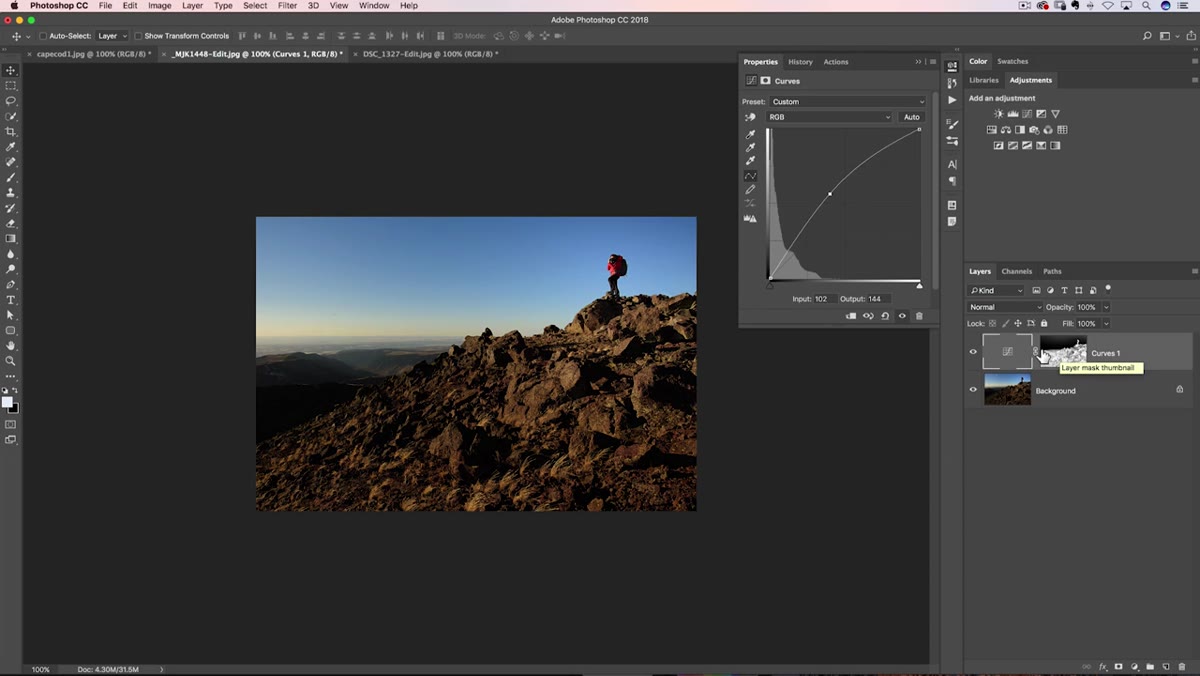
Before you can refine a mask, you need to see what it’s actually selecting. Kloskowski starts by Command-clicking (Ctrl-click on Windows) directly on the mask thumbnail in the Layers panel. This converts the mask into a marching-ants selection, revealing exactly which areas are targeted. White regions in the mask become active selections; black regions are excluded; gray areas are partially selected and will receive a proportional amount of whatever effect you apply.
Overview of luminosity masks panel applied to landscape photo
Before you can refine a mask, you need to see what it’s actually selecting. Kloskowski starts by Command-clicking (Ctrl-click on Windows) directly on the mask thumbnail in the Layers panel. This converts the mask into a marching-ants selection, revealing exactly which areas are targeted. White regions in the mask become active selections; black regions are excluded; gray areas are partially selected and will receive a proportional amount of whatever effect you apply.
This step matters more than it sounds. Looking at a mask visually and assuming you understand its coverage is a trap. Loading it as a selection forces you to confront the reality of what’s included, especially in those mid-gray transition zones that silently undermine your adjustments.
Step 2: Apply an Adjustment Layer to Test the Mask’s Coverage
 Curves adjustment layer added with mask visible in layers panel
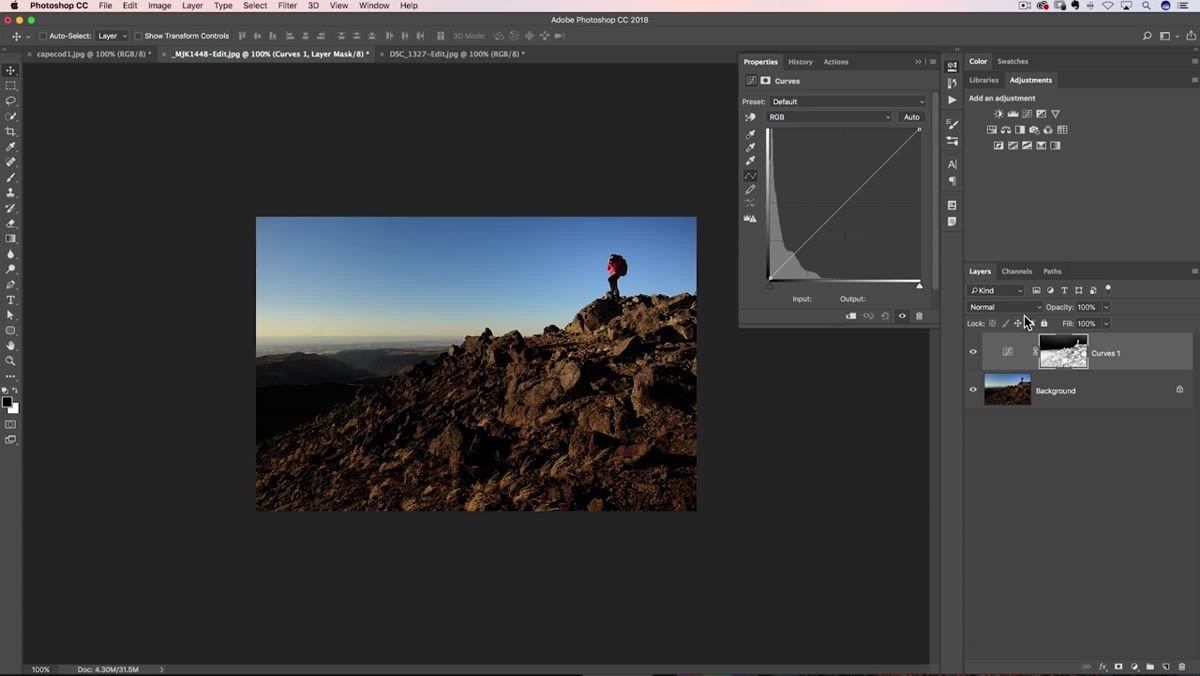
With the selection active, click back to your RGB composite in the Layers panel, then add an adjustment layer. Kloskowski uses a Curves layer here as a diagnostic tool, pushing the darks up to make the mask’s effect visible across the image. Photoshop automatically applies the current selection as that adjustment layer’s mask, so you immediately see where the effect lands.
Curves adjustment layer added with mask visible in layers panel
With the selection active, click back to your RGB composite in the Layers panel, then add an adjustment layer. Kloskowski uses a Curves layer here as a diagnostic tool, pushing the darks up to make the mask’s effect visible across the image. Photoshop automatically applies the current selection as that adjustment layer’s mask, so you immediately see where the effect lands.
The goal at this stage isn’t the final look. It’s a stress test. Drag the curve aggressively so the effect becomes obvious, even exaggerated. You’ll quickly discover areas getting affected that you never intended, such as a sky brightening when you only wanted to lift shadows in the foreground. That’s your problem area, and now you can see it clearly.
Step 3: Alt-Click the Mask Thumbnail to Inspect It Directly
 Layer mask displayed in grayscale across the full canvas
Option-clicking (Alt-click on Windows) on the mask thumbnail in the Layers panel displays the mask itself in grayscale directly on the canvas. This is where Kloskowski’s core point becomes visually obvious. Areas that look gray, not pure black, are still being partially selected and affected by your adjustment. Pure black is the only value that fully excludes a region.
Layer mask displayed in grayscale across the full canvas
Option-clicking (Alt-click on Windows) on the mask thumbnail in the Layers panel displays the mask itself in grayscale directly on the canvas. This is where Kloskowski’s core point becomes visually obvious. Areas that look gray, not pure black, are still being partially selected and affected by your adjustment. Pure black is the only value that fully excludes a region.
When I first started doing composites professionally, I would eyeball masks from the thumbnail and assume I had clean edges. Option-clicking and seeing a muddy gray sprawl across something I thought was excluded was a humbling moment. Do this every time. It takes two seconds and it saves you from chasing problems you can’t see at normal view.
Step 4: Paint Over Problem Areas with a Black Brush
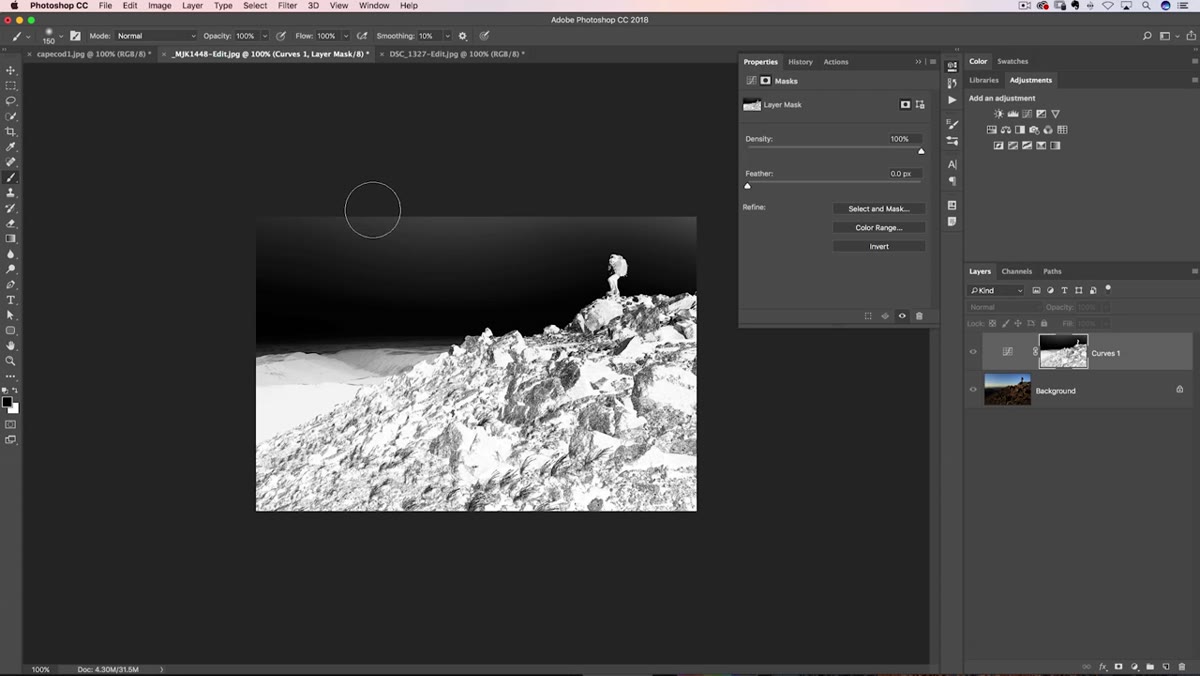 Black brush being painted over sky area on the layer mask
The most direct fix for an unwanted gray region is also the most manual. Set your foreground color to black, grab the Brush tool, and paint over the areas of the mask you want to fully exclude. Where you paint black, the effect disappears completely. This works well for small targeted areas or edges where you need precision control.
Black brush being painted over sky area on the layer mask
The most direct fix for an unwanted gray region is also the most manual. Set your foreground color to black, grab the Brush tool, and paint over the areas of the mask you want to fully exclude. Where you paint black, the effect disappears completely. This works well for small targeted areas or edges where you need precision control.
Keep your brush opacity at 100% if you want a hard exclusion. Dropping the opacity lets you partially suppress a region rather than eliminate it entirely, which can be useful for blending transitions. But for a sky that should have zero influence from a foreground shadow adjustment, full black at full opacity is the right call.
Step 5: Use the Lasso Tool to Fill Large Areas Quickly
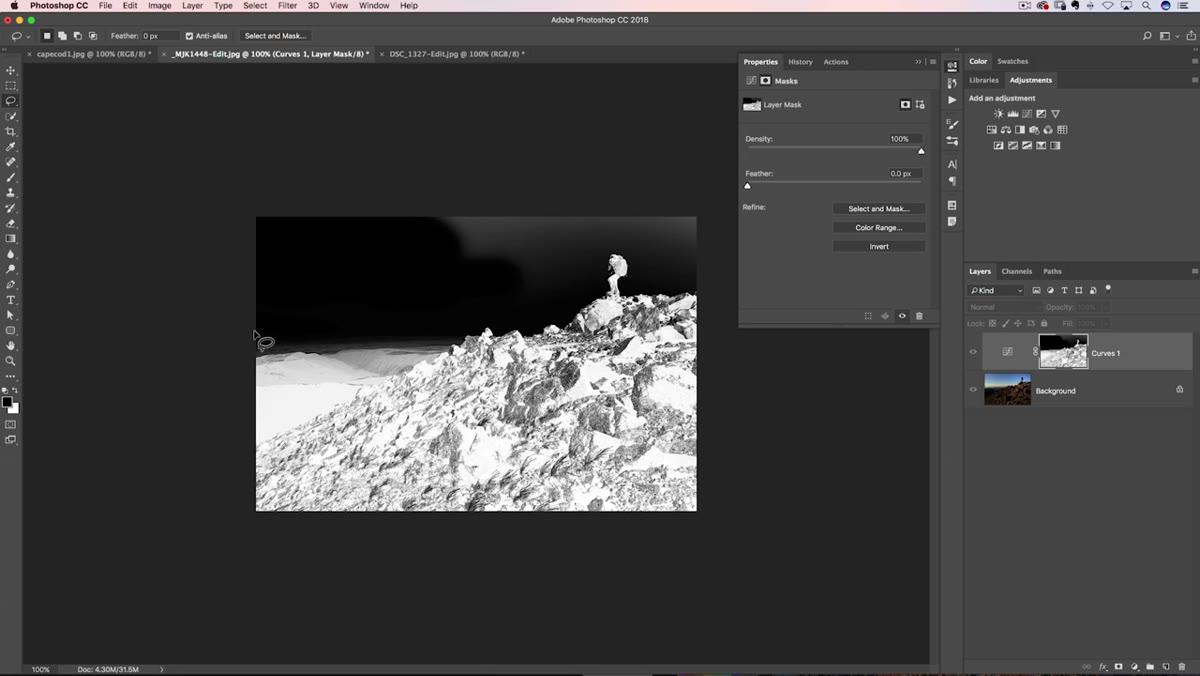 Lasso selection drawn roughly around the sky region
Here’s the technique Kloskowski flags as the one most people overlook, and he’s right. When you need to exclude a large, simple region, painting with a brush is slow and imprecise. Instead, grab the Lasso tool and draw a rough selection around the area you want to eliminate from the mask. It doesn’t need to be precise. A loose, fast selection around the sky is enough.
Lasso selection drawn roughly around the sky region
Here’s the technique Kloskowski flags as the one most people overlook, and he’s right. When you need to exclude a large, simple region, painting with a brush is slow and imprecise. Instead, grab the Lasso tool and draw a rough selection around the area you want to eliminate from the mask. It doesn’t need to be precise. A loose, fast selection around the sky is enough.
Once the selection is active, go to Edit, then Fill, and fill with black. The entire lassoed region becomes black in the mask instantly. What would have taken minutes of careful brushwork takes about five seconds. Kloskowski’s point is that precision is sometimes the enemy of efficiency. The lasso doesn’t care about pixel-perfect edges when the underlying image already has clean contrast between the regions you’re separating.
What I’d Add From My Own Work
The three techniques Kloskowski covers handle the majority of mask cleanup situations. What I’d layer on top, specifically for compositing work where masks are often more complex than a single landscape, is to run these checks in a specific order before committing to any adjustment.
My habit is to load the mask as a selection first, add a temporary Curves layer pushed to an extreme, and then Option-click to inspect the actual mask values. I fix the large regions with the lasso fill, then clean up edges with the brush. I do this before I do any real color or tonal work. The extra two minutes at the beginning of a masking session consistently saves me from rebuilding things later, which is a lesson I learned slowly, through a folder of failed composites I still look at every month to remind myself where the sloppy habits live.
One additional note: if your mask has a lot of soft gradient areas you want to preserve rather than paint over, consider using Levels directly on the mask itself. Clipping the whites and blacks inward forces the gray midtones to commit to one side or the other. Kloskowski doesn’t cover this in the tutorial but it pairs naturally with everything he demonstrates here.
The core insight from this tutorial is simple and durable. A mask is just black and white, and your only job is to get every pixel closer to one or the other, depending on what you want. The method doesn’t matter. The brush, the lasso, a Levels adjustment on the mask, all of them are just different routes to the same destination.
Watch the full tutorial on YouTube and see Kloskowski walk through each technique on an actual image. Seeing the mask respond in real time to the lasso fill in particular is the kind of thing that rewires how you work.
Comments
Leave a Comment